

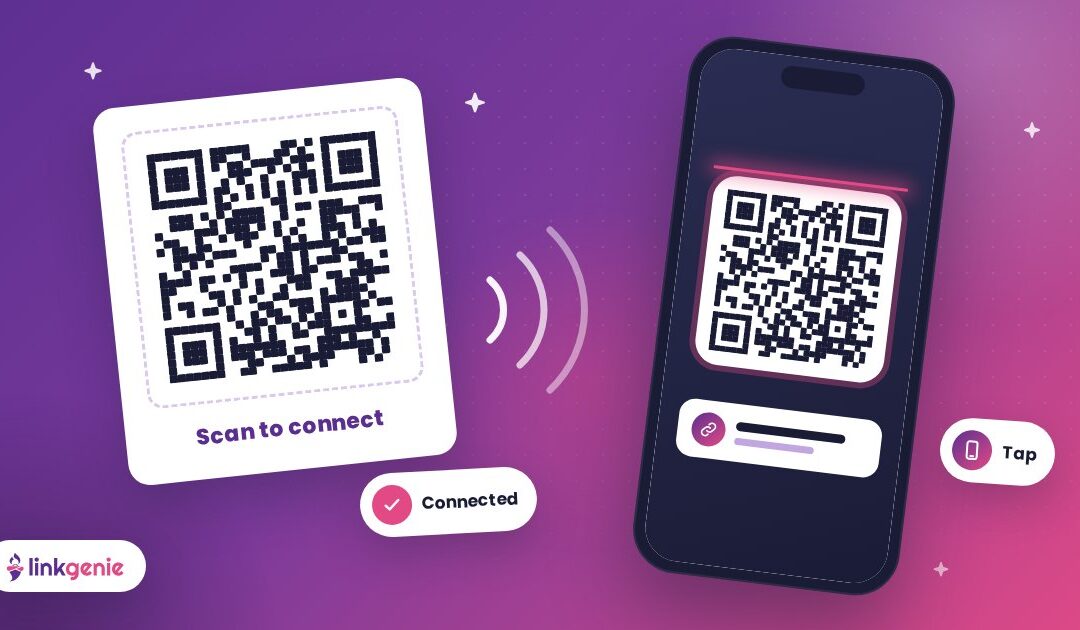
Your link in bio works beautifully online. But some of your best connections happen offline: at a conference booth, a pop-up market, a networking breakfast, a gig, a client's office. In those moments nobody wants to type a URL letter by letter.
That's where tap, scan, connect comes in. With a QR code and a tap-to-share setup pointing to your LinkGenie page, anyone can go from "nice to meet you" to "saved your details" in a couple of seconds. Here's how to set it up, and how to do it well.
Why your in-person link matters
When you hand someone a paper card, you're hoping they keep it, remember why, and type your details in later. Plenty of cards end up in a drawer.
When someone scans or taps to open your LinkGenie page, they land on everything at once: your contact card, your work, your socials and your booking link. Your page is always current, too. Change a link and every printed QR code and tap card instantly points to the updated version, because they all point to the same page.
Scan: turn your link into a QR code
A QR code is the universal "point your camera here" shortcut. Almost every modern phone camera reads them without a special app.
Create your code
LinkGenie's paid plans include a QR code generator where you can match your code to your brand with custom colors and gradients, your logo, a background, different shapes and frames. It also has templates for other kinds of codes, like vCard contact details, Wi-Fi, calendar events and locations. You can compare what each plan includes on our pricing page.
On any plan, your LinkGenie URL is just a web address, so you can also turn it into a QR code with any QR tool you already use. Either way, point the code at your LinkGenie page rather than a single link, so one code can do everything.
Design tips that keep codes scannable
A beautiful QR code that doesn't scan is just modern art. Keep these rules in mind:
- Contrast is king. Dark code on a light background scans most reliably. Avoid light-on-light or busy photo backgrounds behind the pattern.
- Leave breathing room. Keep a clear margin (the "quiet zone") around the code. Don't let text or graphics crowd its edges.
- Size it for the distance. A code on a business card can be small. A code on a booth banner people see from across the aisle needs to be much bigger.
- Keep logos modest. A small logo in the middle is usually fine. A giant one can block too much of the pattern.
- Test before you print. Scan it with a few different phones, in normal and low light, before you order 500 copies.
Always add a call to action
A bare QR code makes people wonder what it does. Add a short label next to it: "Scan to save my contact," "Scan for the menu," "Scan to hear the album." Telling people what they'll get makes them far more likely to pull out their phone.
Tap: share without the camera
"Tap" covers a few quick ways to share your link with no typing.
Phone to phone
Your phone's share sheet is already a networking tool. Open your LinkGenie page, tap share and send it by text, AirDrop, Nearby Share or your favorite messaging app. It lands in their phone with your name attached, which makes the follow-up easy.
Tap cards and NFC stickers
Many tap-to-share business cards, stickers and key fobs use NFC: hold the card near a compatible phone and a link pops up. If you use one of these, simply program it with your LinkGenie URL. Because your page is the destination, you never need to reprogram the card when your details change. Just update your page.
Save it where you can reach it fast
Put your QR code somewhere you can show it in a second: a photo in your favorites, your lock screen or a widget. When someone asks "How do I find you?", you're two taps away from the answer.
Connect: make the landing worth the scan
Getting someone to scan is only half the job. The page they land on has to deliver.
Put the in-person action first
Think about why someone scans you in person. Usually it's one of these:
- Save your contact. Put your vCard block near the top so people can add you to their phone in one tap.
- See your work. A portfolio, a reel or a featured project.
- Take the next step. Book a call, grab a discount, sign up for your list or follow you.
For events, consider temporarily moving your contact card and your most relevant offer to the very top, then switching back afterwards.
Make it phone-friendly
Everyone who scans will be on a phone, often standing up and a little distracted. Keep labels short, avoid tiny text and make sure your most important button is visible without scrolling.
Track what's working
If you print codes for different places, a booth banner, a flyer and your business card, it helps to know which one people actually scan. On plans that include LinkGenie's short links, you can add UTM parameters to separate them. LinkGenie analytics shows referrers and UTMs, along with visitors' countries, devices and browsers, so you can see which placement earned the most visits.
Genie tip: Create one code per placement, like "booth," "flyer" and "card," and compare them after the event. Double down on what works next time.
Where to use your code and tap link
Once you start, you'll spot opportunities everywhere:
- Business cards: a QR code on the back turns a paper card into a live, always-current profile.
- Name badges and lanyards: perfect for conferences and meetups.
- Booths and tables: a stand-up sign with your code and a clear call to action.
- Storefronts and counters: let customers find your menu, reviews or socials while they wait.
- Merch, packaging and receipts: keep the relationship going after the sale.
- Slides: end every talk with your code on screen so the room can find you instantly.
- Flyers and posters: for gigs, events, open houses and community programs.
A quick pre-event checklist
- Your LinkGenie page is up to date and your contact card is near the top.
- Your QR code is tested on a few phones and printed large enough.
- Every code has a short call to action beside it.
- Your tap card or sticker opens your LinkGenie URL.
- Your phone has the code saved somewhere you can reach in seconds.
Bring your link into the real world
Online, your link lives in your bio. Offline, it lives in a QR code, a tap and a quick share. Same page, same magic, wherever you meet people.
Claim your free LinkGenie link, turn it into a QR code and walk into your next event ready to tap, scan and connect.
Keep reading
Network Like a Pro
Be memorable, be easy to reach and follow up like you mean it. A before, during…
Your Shop, One Tap Away: Link in Bio for Small Businesses
Menu, booking, directions, reviews and socials in one link. How local businesses can use a LinkGenie…
Making a Great First Impression
Visitors decide in seconds whether to stay on your link in bio. Here is how to…